
flowName) or create a verification link (name).
Flows list
Your flows are under Flows → SDK flows. They may already be set up for you; to create one, click Add SDK flow. Each row shows:- Name, plus who last updated the flow and when
- Services, the checks included in the flow
- Tokenized Url, with Generate and copy to create a verification link
- Three icons: open the flow in a new tab, duplicate it, and delete it
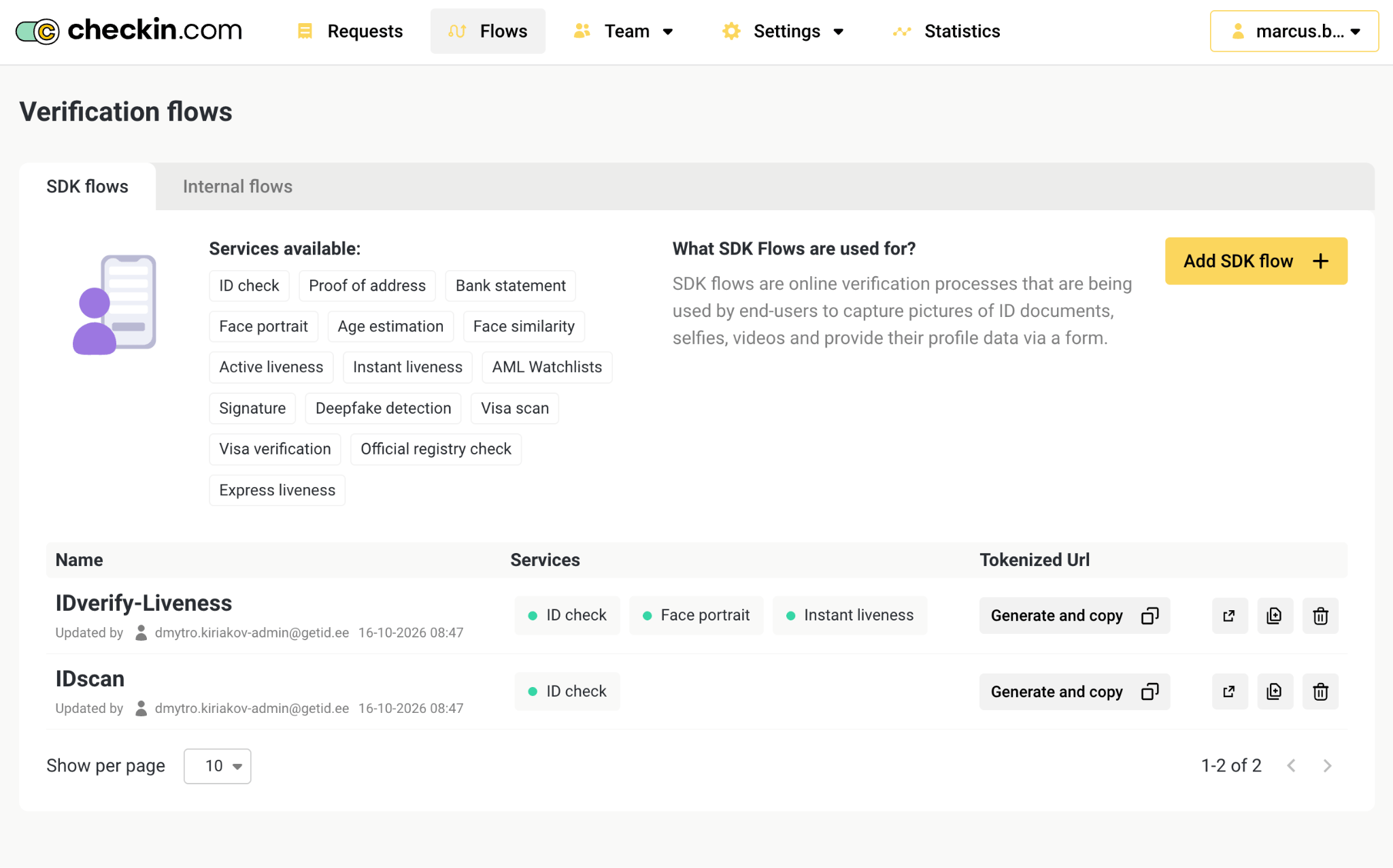
The Flows list and their enabled services
Flow tabs
Click a flow’s name to open it. Each flow has these tabs:Summary
Shows a preview of the applicant journey based on the selected services. If you change the services, check the preview again.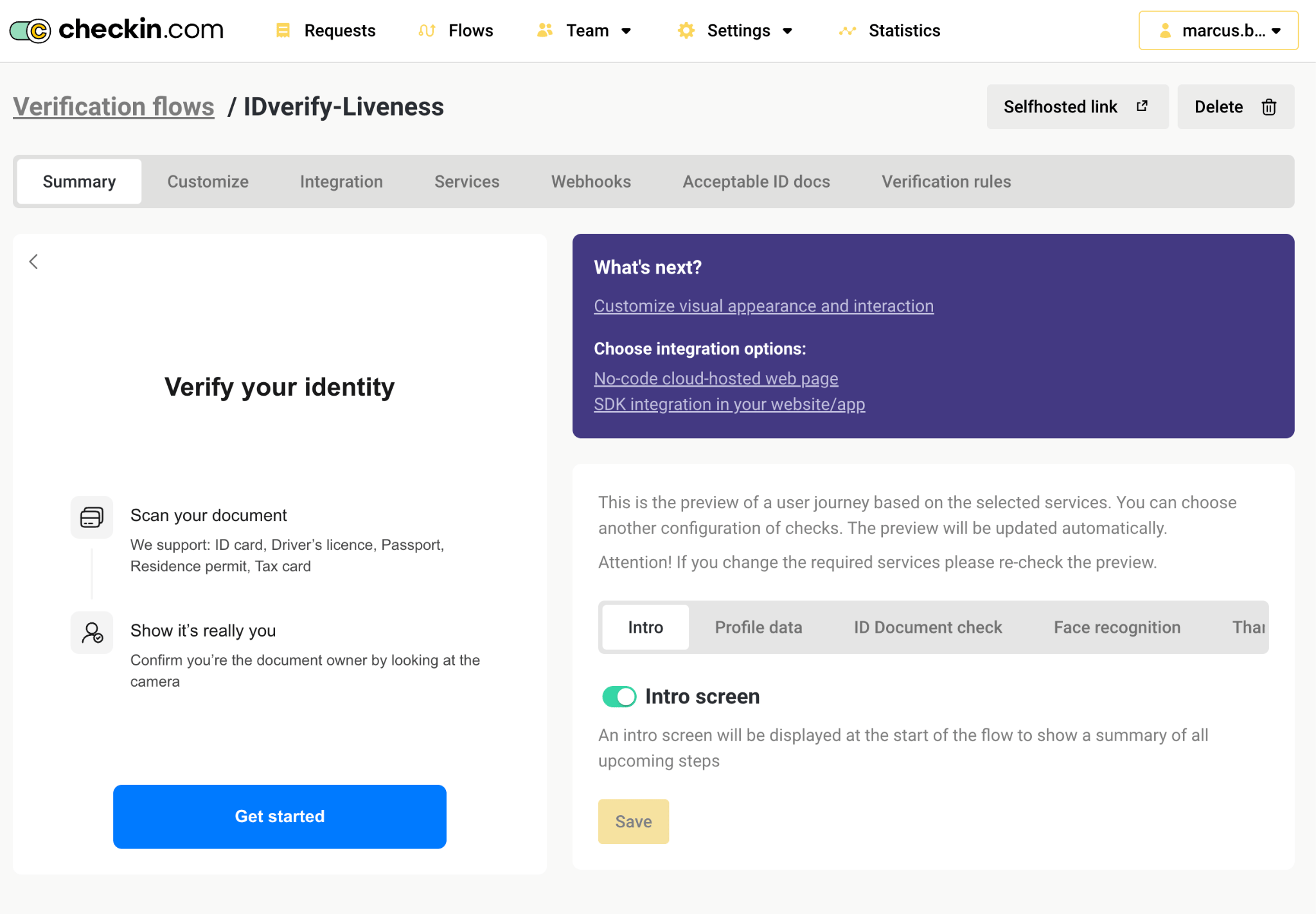
Flow configuration with a preview of the applicant journey
Intro
Intro screen shows a summary of all upcoming steps at the start of the flow.Profile data
With Form fields on, the applicant fills in a form with their details. The data is cross-checked with the ID document (see Profile comparison) and used for Watchlists screening. With it off, the applicant starts by taking photos of the ID document, and no cross-check with personal details is performed.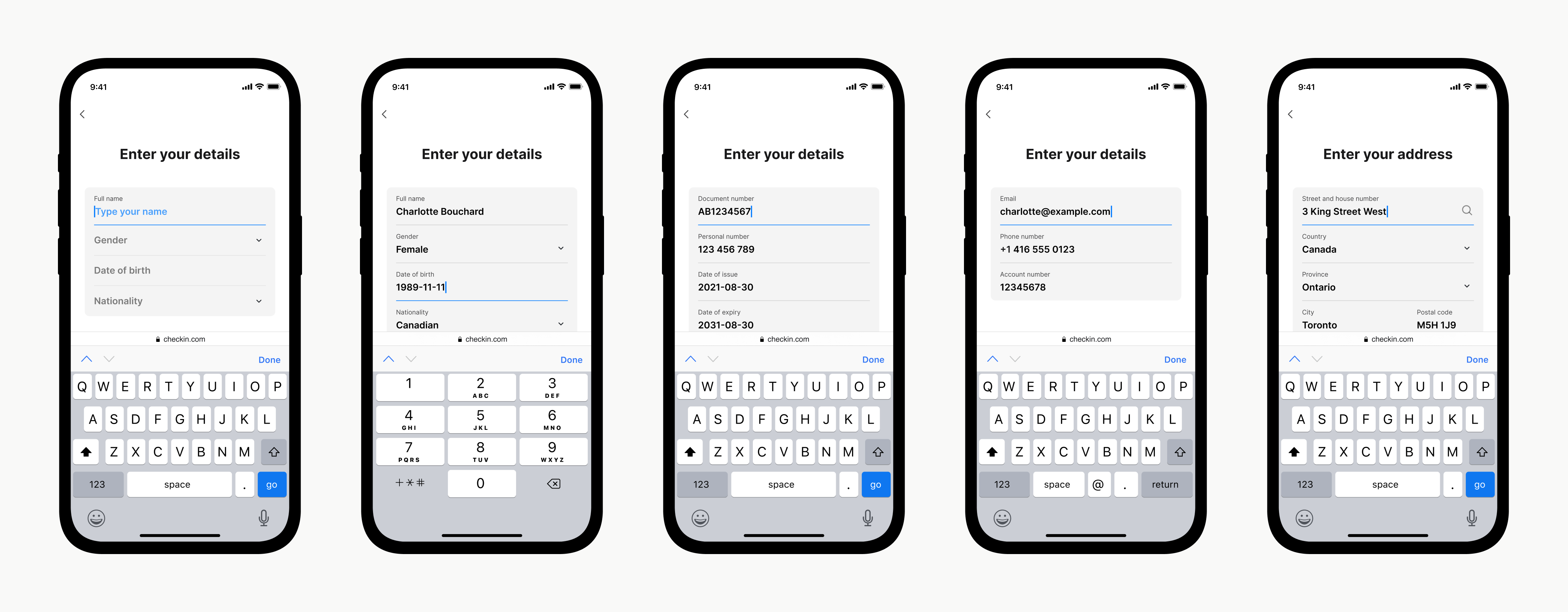
The profile data form in the Web SDK
Thank you
Customize
Visual appearance
Create or edit themes in the Style Editor. Use a Single theme for all cases, or Light & Dark themes to switch between a light and a dark theme.Localization
See Localization.
Location control
NFC
Turn on NFC chip reading for the mobile SDKs. See NFC chip reading.Other
Integration
Cloud Hosted Webpage is where you build an enriched verification link or turn on the public link. The Web, iOS and Android options show how to integrate the flow in your website or app. See Verification links.Services
Turn on the checks the flow runs.
After changing the services, check the preview in Summary.