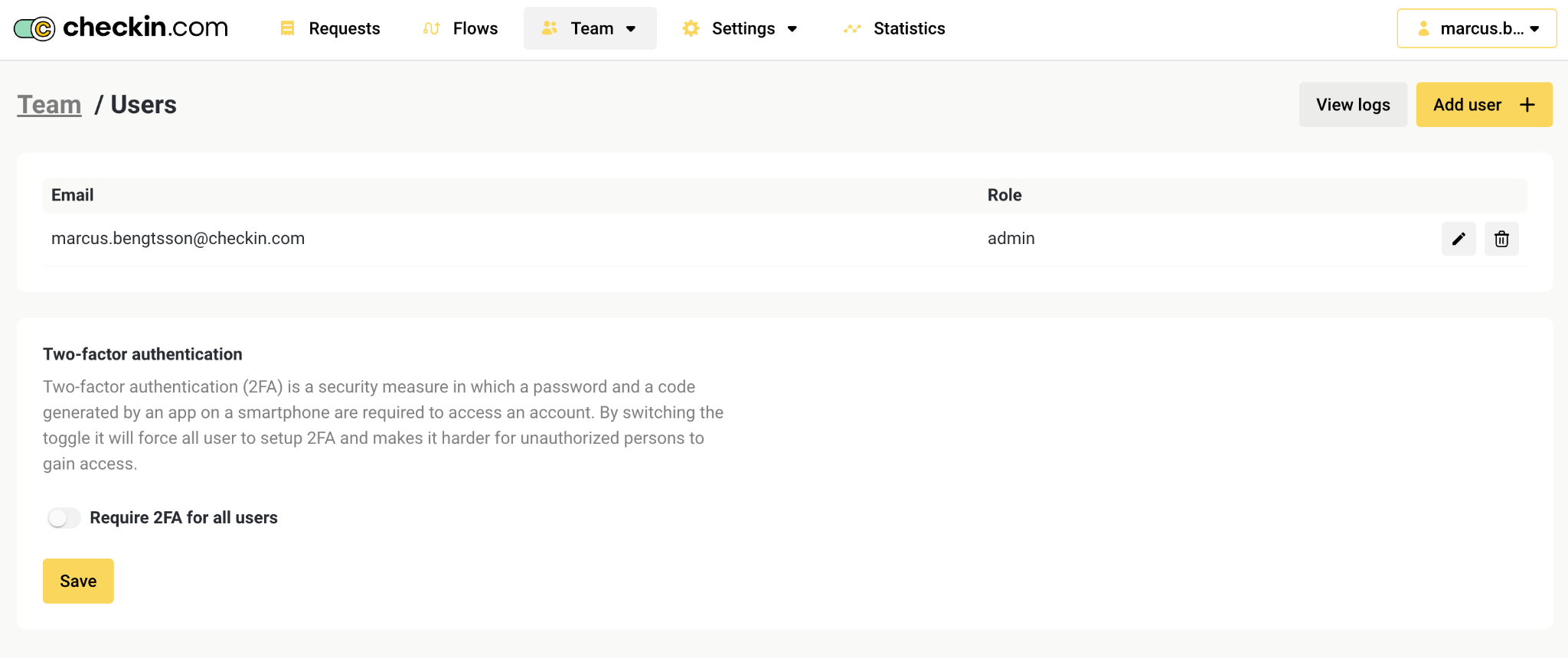
In Team → Users, admins add, edit and delete users and assign their roles and filters.
Team → Users

Team → Users with the two-factor authentication setting

Add a user

  1. Go to Team → Users and click Add user.
  2. Enter their Email.
  3. Choose a Role. See Set roles.
  4. Optionally, choose Metadata filters to limit which applications they see. By default a user sees all applications (Show all).
  5. Click Add user.

Activity logs

In Team → Users, View logs shows who did what in the Backoffice.

Two-factor authentication

By default, users can skip setting up 2FA. To make it mandatory, turn on Require 2FA for all users in Team → Users. We recommend it. See Secure sign-in.

Metadata filters

Metadata filters restrict which applications a user can access, based on the application’s metadata. Set them up in Team → Metadata filters, then assign them to users in Team → Users.