
When to use it
- Onboarding where you need the applicant’s identity data from a government-issued document, such as name, date of birth and document number
- Checking that data the applicant typed in matches their document, with Profile comparison
- As the base for Face Match, which compares a selfie with the document portrait
Accepted documents
Passports, ID cards, driving licences and residence permits are supported for most countries, plus other types such as voter cards, tax cards and refugee documents for some. See Supported documents for coverage by country, and how to choose the accepted documents in the Backoffice. In the SDKs and verification links, the document type is detected automatically, so the applicant doesn’t select it. The back side is requested only when the document has one, so a passport needs a single photo. In the API, the document type and issuing country are also detected from the images, so you don’t need to pass them.documentType and issuingCountry are optional.
Document types (documentType):
passportid-carddriving-licenceresidence-permitvoter-cardtax-cardaddress-cardstudent-carddomestic-passportunknown
issuingCountry) is an ISO 3166-1 alpha-2 or alpha-3 code.
Applicant flow
In the Web SDK, the applicant scans the front of the document, flips it, scans the back if the document has one, then takes a selfie. With Liveness on, liveness is checked during the same selfie capture.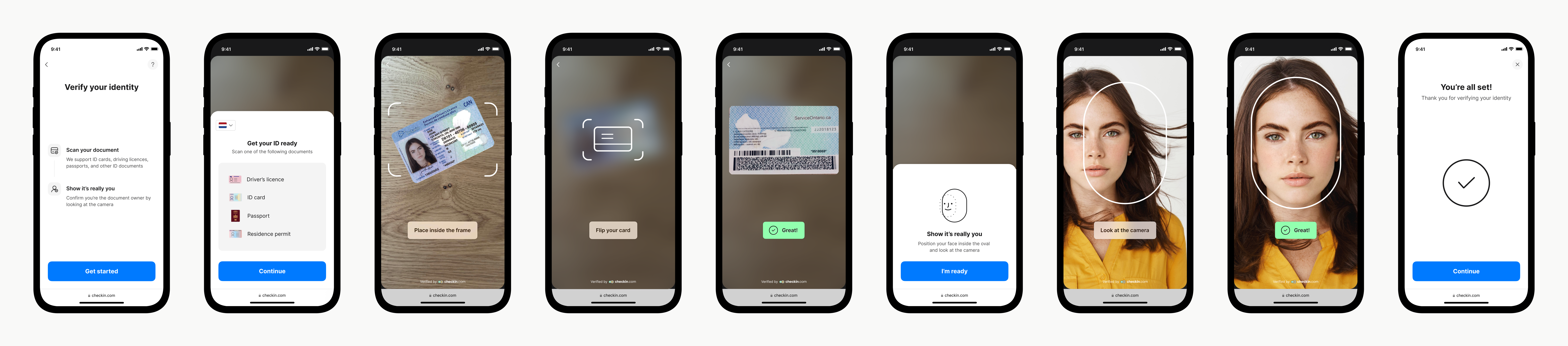
Web SDK flow with Document Check, selfie and liveness
Configuration
In the Backoffice, per flow:
See Flows.
At runtime, the SDKs can narrow the flow’s accepted documents with
acceptableDocuments.
See Applicant data.
Request
In the API, request it withverificationTypes:
Result
servicesResults.docCheck contains:
Per-field data
Each entry indocumentDataChecking:
Extracted fields
The list of extracted fields depends on the document type, country and revision. Fields prefixed withOriginal, such as Original Last name, hold the value as printed on the document, for example in Cyrillic or in its original letter case, while Last name holds the normalised Latin spelling in upper case.
Each extracted value has category, content and contentType (for example string, date, country).
Example
tooltip that explains what it checks.
A check list with an issue:
docCheck.status is needs-review, comment is Found 1 issue(s)., and overallResult.concerns lists the summary concern DC045 together with DC008.
Profile comparison
When you send the applicant’s details infields, they are compared with the document automatically. The comparison is returned in servicesResults.profileCheck.
See Profile comparison.
Images
extracted.images[].kind values: front, back, portrait, signature, ghost-portrait, mrz, barcode.
See Download media.
Concerns
Values in{braces} are filled in at runtime.
Document check (DC)
Document check (DC)
NFC concerns (
DC064–DC067) are on NFC chip reading.Data extraction (DE)
Data extraction (DE)
PC) are on Profile comparison.
All codes are in Considers lists.