
When to use it
- Any onboarding where you need to know the applicant is the owner of the document
- Together with Liveness: Face Match shows the faces match, Liveness shows a real person took the selfie
How it works
- If the selfie step is enabled in the flow, the applicant is asked to capture their face.
- Auto-capture takes the photo as soon as the face fits the oval frame. If the applicant struggles, a manual capture button is available as a fallback.
- The selfie is compared with the portrait on the document. When the chip was read with NFC, the chip portrait is used instead.
- The result shows how similar the faces are, and your verification rules decide the status.
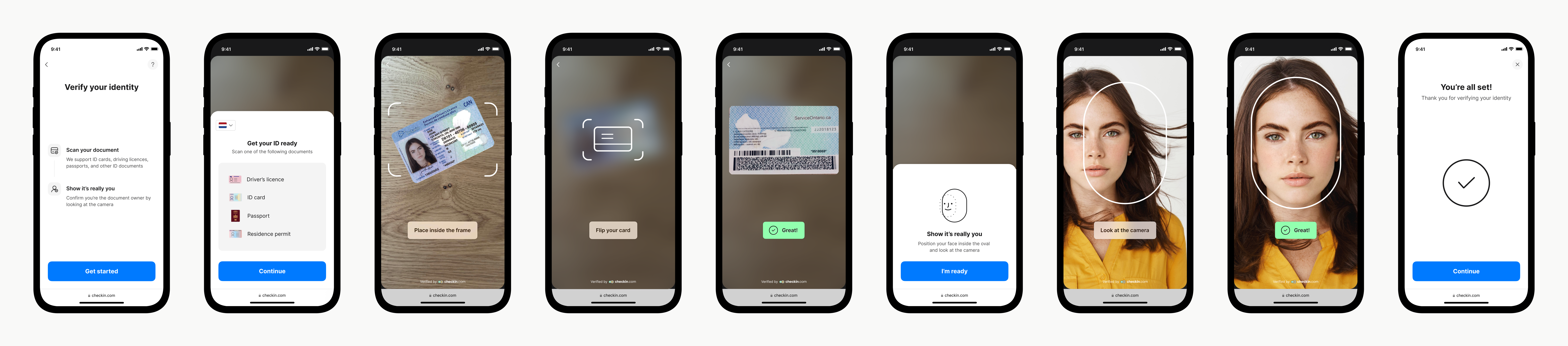
Web SDK flow with Document Check, selfie and liveness
Request
In the API, send the document and the selfie in the same application:Configuration
Turn on Face portrait in Flows → [flow name] → Services. It adds the selfie step and matches the selfie with the document portrait. There are no other settings for the selfie step. In Settings → Verification rules → Facial Similarity Check (or the flow’s own verification rules), you choose whether each selfie finding sends the application to review or declines it: not a real selfie, mismatch with liveness, missing photos, multiple faces. See Verification rules.Result
Example
comment shows the score as a level of confidence, for example 0.8913 as 89%. results[].files lists every image that was compared, which can include liveness frames.
Biometrics
faceMatching.biometrics.calculated can contain:
See Face Similarity and Age Estimation.
Concerns
Face Similarity, Age Estimation and Deepfake detection concerns are on their own pages.
All codes are in Considers lists.